Dear Readers,
I'm moving forward and opening a new blog for Windows Embedded technologies.
The URL is : http://embeddingwindowssuccess.blogspot.fr/
- Nicolas
Tuesday, January 15, 2013
Moving forward to a new blog
Thursday, November 15, 2012
Windows Embedded Roadmaps revealed
Microsoft reveal the Windows Embedded products roadmap and naming.
link
- Nicolas
Monday, October 8, 2012
Adeneo Embedded announces the availability of the official Windows Embedded Compact 7 reference BSP for i.MX6
 |
| i.MX6x Saber Lite |
A binary demo image is available for free download directly on Adeneo Embedded website at http://www.adeneo-embedded.com/Products/Board-Support-Packages/Freescale-i.MX6-Sabre-Lite
Licensing of the source code BSP will be publicly available soon. For customers needing to start their development immediately, Adeneo Embedded proposes an “early adoption” program. Please contact sales@adeneo-embedded.com for more details on how to access to the BSP source code prior the public release.
- Nicolas

Wednesday, June 6, 2012
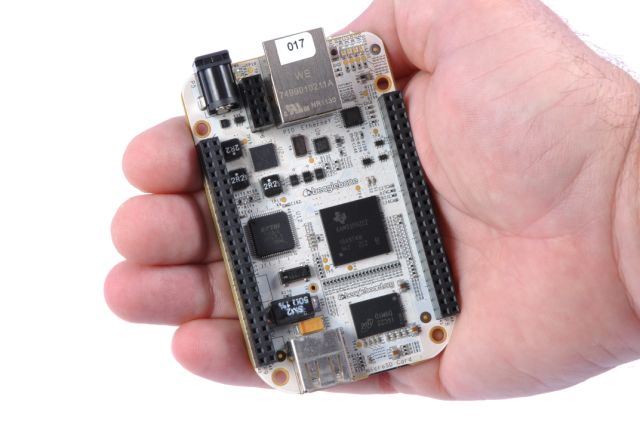
Adeneo Embedded releases BeagleBone Windows Embedded Compact 7 BSP for Community
Leveraging
the latest “Unified BSP” for Texas Instruments (TI) CortexTM-A8 MPUs,
Adeneo
Embedded supports the BeagleBone community with Windows Embedded Compact 7
Ecully,
France and Bellevue, WA, June 5, 2012 - Adeneo
Embedded, a platinum member of the Texas Instruments Design Network, and a
Microsoft Windows Embedded Gold Partner and recipient of the “Windows Embedded
Excellence Award” from 2007 through 2011, announces the availability of Windows
Embedded Compact 7 reference board support packages (BSPs), along with a full
suite of support services, including customized support, training and
development services, for the SitaraTM AM335x ARM® CortexTM-A8
processor-based community board, the BeagleBone.
BeagleBone is a low-cost,
high-expansion board that can either works stand-alone or acts as a USB or
Ethernet connected expansion companion for BeagleBoard and BeagleBoard-xM
boards, based on 720MHz SitaraTM MPU AM3359 with 256MB DDR2 memory.
BeagleBone BSP
developed by Adeneo Embedded is based on the latest version of the Texas
Instruments “unified BSP” for Windows Embedded Compact 7 which supports TI ARM®
CortexTM-A8 devices, including OMAP35x, AM335x, AM35x, AM37x, AM387x
SitaraTM ARM® MPUs and DaVinci DM37x and DM816x video processors. Through
a strategic collaboration between TI and Adeneo Embedded, this unified BSP is available
from Adeneo Embedded website since February 2012.
Windows Embedded
Compact 7 provides developers, designers and original equipment manufacturers
(OEMs) with a powerful real-time OS and a full suite of development tools,
enabling an integrated, streamlined development experience to speed devices to
market.
The Sitara AM335x platform
used on the BeagleBone is a cost and performance optimized solution targeting portable,
pocket-sized applications. Starting at $5 and consuming as low as 7 mW of
power, the AM335x ARM® CortexTM-A8 processors
provide low power consumption while prolonging battery life and reducing heat
emissions. Developers have access to a high performance processor with advanced
3D graphics capabilities, touch screen controller and sophisticated peripherals
all on a single chip.
"Releasing this new BSP for the BeagleBone
community board highlights our commitment to Texas Instruments and Microsoft to
support OEMs from early prototyping to shipment of their
devices," said Yannick Chammings, chief executive officer, Adeneo
Embedded. "Our ‘community board’
strategy was initiated with the release of Windows Embedded Compact 7 BSP for
BeagleBoard xM. With the availability of the BSP for BeagleBone, customers can
now evaluate Windows Embedded Compact 7 on the whole scope of development
platforms available for TI MPUs, covering prototyping, early evaluation, as
well as industrial development stages.”
“Texas
Instruments is excited to have Adeneo Embedded's support of the BeagleBoard
community with a BeagleBone-based Windows Embedded Compact 7 BSP,” said
Thomas Kelly, director, TI’s Design Network. “The combination of BeagleBone and Windows Embedded Compact will ease
the development of new innovative intelligent embedded systems for community
members and OEMs alike,”
“Adeneo Embedded’s support for the Windows Embedded Compact platform on
the BeagleBone community board opens new opportunities for better innovation
across the device development cycle, giving customers greater ability to create
optimized devices to power intelligent systems for the enterprise,” said
Lorraine Bardeen, marketing director for Windows Embedded EMEA at Microsoft.
OEMs interested in
using these technologies for their devices can discuss further support options
available by contacting our sales team at sales@adeneo-embedded.com.
Windows Embedded Compact 7 reference BSP for BeagleBone is available on Adeneo
Embedded website: http://www.adeneo-embedded.com.
About Adeneo Embedded
Adeneo Embedded
provides system integration, design, support and training services to companies
seeking world-class expertise in embedded solutions using high-performance
architectures. For over 10 years, Adeneo Embedded has helped clients, in all
stages of development; create profitable, feature-rich products that
incorporate software and hardware solutions based on Windows Embedded, Windows Phone
or .NET Micro Framework operating systems. Close working partnerships with
industry-leading silicon and software vendors allow Adeneo Embedded to apply
its experience to a wide range of embedded solutions for the automotive,
industrial, medical, multi-media,
navigation, networking, mobile and
wireless markets. Adeneo Embedded has a global sales and support network backed
by engineering offices in North America and Europe.
About the Texas
Instruments Design Network
Adeneo Embedded is a platinum member of the TI
Design Network, a premier group of independent, well-established companies that
offer products and system-level design and manufacturing services complementing
TI’s semiconductors to a worldwide customer base to accelerate product
innovation and time-to-market. Network members provide product design, hardware
and software system integration, turnkey product design, RF and processor
system modules, reference platforms, software development, proof-of-concept
design, feasibility studies, research, certification compliance, prototyping,
manufacturing, and product life cycle management. For more information about the
TI Design Network, please visit http://www.ti.com/designnetwork.
Trademarks
OMAP,
Sitara and DaVinci are trademarks of Texas Instruments. All other trademarks and registered
trademarks belong to their respective owners.
© 2012
Adeneo Embedded. All Rights Reserved. All other brands or product names are the
property of their respective holders
Further information
For more
information about Adeneo Embedded competences, products and services around
Windows Embedded technologies:
For a local contact in
Adeneo Press Contacts
Valerie
Cote
Executive Assistant, Adeneo
Embedded (EU)
Phone +33
426-492-539
Kathleen Wright
Office
Manager, Adeneo Embedded (USA)
Phone +1
(425) 749-4335
- Nicolas
Tuesday, June 5, 2012
Windows Embedded Standard 7 for Application developers
You are application developer and want to know more how WES7 (Windows Embedded Standard 7) can fit your needs for your final product, then I would encourage you to attempt the webinars on that topic provided by Adeneo Embedded and Arrow Electronics here
- Nicolas
Saturday, November 26, 2011
Windows Embedded products road map
Microsoft announces the Windows Embedded vNext products releases.
Check out Olivier's Bloch blog for details
- Nicolas
Thursday, November 24, 2011
Windows Embedded Compact 7: Enabling the Mouse to Activate Hyperlinks in the Web Browser
Have issue with the mouse click in IE under Windows Embedded Compact 7, then check out this work around.
- Nicolas
Subscribe to:
Posts (Atom)


 Posts
Posts


